

The best automation workflow tools for most teams are n8n for technical users who want control, Zapier for beginners who need the widest app coverage, Make for visual builders on a budget, Gumloop for AI-first workflows, and Microsoft Power Automate for companies built around Microsoft 365. Pipedream suits developers, Activepieces suits self-hosters, Lindy suits teams that want an AI assistant, and Workato suits large enterprises with IT support.
Finding a tool is not the hard part. Every platform counts usage differently, prices its AI features differently and expects a different skill level. Choose wrong and you rebuild your workflows in six months, or you find that a process priced at $20 a month costs several times that once it runs a few thousand times.
This guide compares nine tools in the same format: how each works, who it suits, what it costs and where it falls short. You also get a side-by-side table, a worked usage example and a short method for choosing. QuikeFix builds workflow automation for businesses in South Africa, including n8n projects, so the advice focuses on what matters once a trial becomes a process your team depends on.
What AI workflow automation tools do
AI workflow automation tools connect your apps, run a sequence of steps when something happens, and use an AI model for the steps that need judgment, such as reading an email or classifying a request. Traditional automation only moves data between apps. The AI layer lets a workflow interpret, decide and draft along the way.
How an automated workflow runs
Every platform in this guide follows the same pattern, even when the interface looks different. A trigger starts the run, and the platform then fetches data, processes it and hands the result to another system. Pricing units such as executions, tasks and credits are just different ways of counting these stages, which is why the pattern is worth knowing before you compare plans.
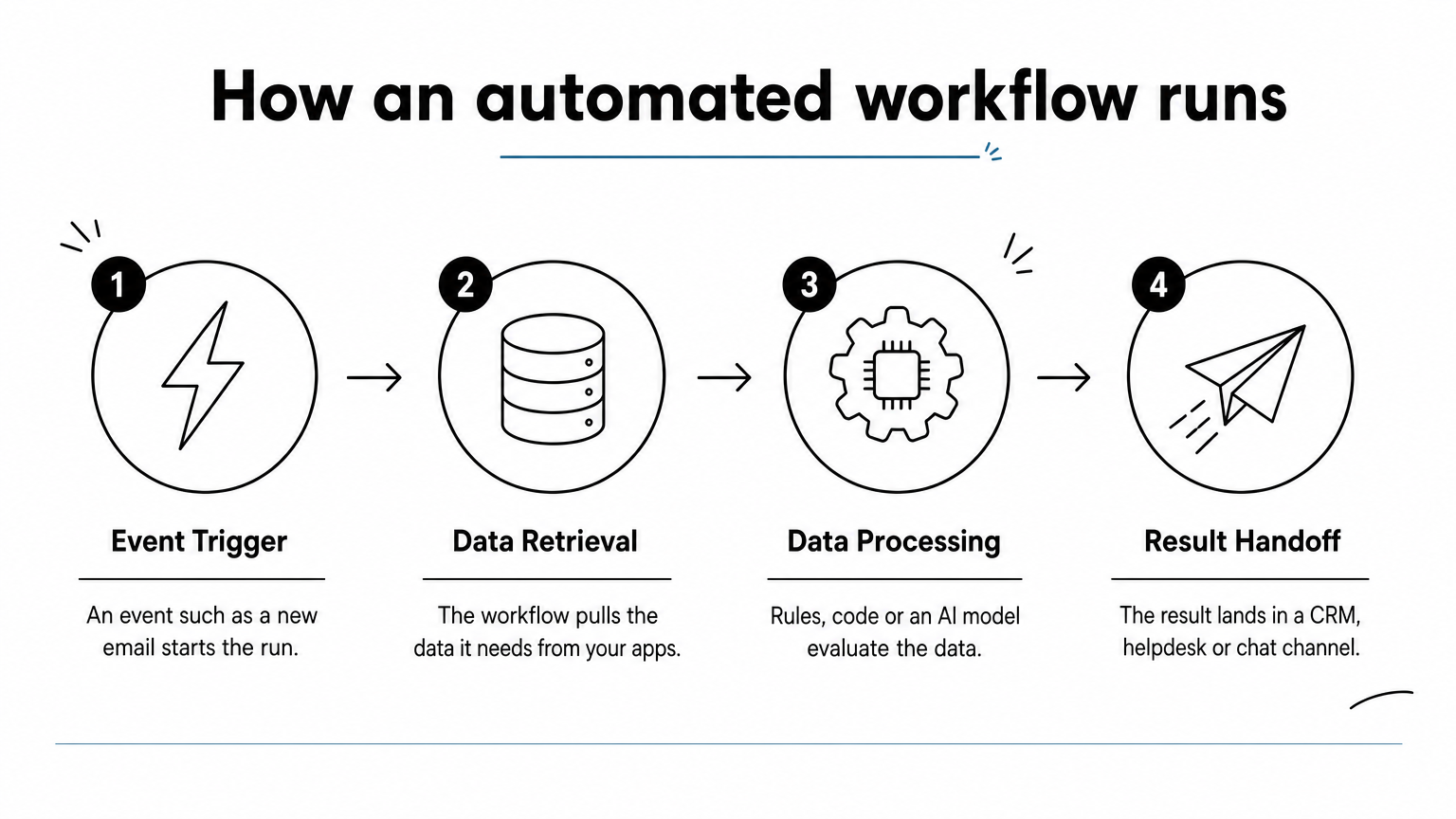
- Trigger: an event starts the run, such as a new email, a form submission or a schedule.
- Data retrieval: the workflow pulls the data it needs from your apps, files or databases.
- Processing: rules, code or an AI model evaluate the data, fill gaps or make a decision.
- Handoff: the result lands in a CRM, helpdesk, spreadsheet or chat channel.
What AI adds to the process
Large language models handle unstructured data, such as emails, PDFs and chat messages, and turn it into structured fields that a CRM or spreadsheet can store. They summarize, categorize, extract and draft. A plain rule-based tool cannot read a supplier email and decide whether it is an invoice or a complaint.
AI also makes mistakes, so design for that. Feed the model your own data instead of asking it to recall facts, and keep a human review step before any action you cannot undo, such as emailing a customer or approving a payment.
Let AI propose, and let a person approve anything you cannot undo.
Workflow automation examples
Good first workflows are repetitive, rule-bound and tied to a clear trigger. These are examples that teams commonly build with the tools below:
- Triage incoming support emails by topic and urgency, then assign them to the right person.
- Extract supplier and amount from invoices and add them to a spreadsheet or accounting system.
- Enrich new leads with company data and draft a first-touch email for review.
- Turn meeting notes into CRM updates and follow-up tasks.
- Notify customers automatically when a shipment milestone changes.
Automation workflow tools at a glance
All nine tools can build a trigger-to-action workflow with AI steps. They differ in who can use them comfortably, where they run and how they bill. Use the table to shortlist two or three, then read their sections.
Side-by-side comparison
Prices are entry-level paid plans in US dollars, and most vendors discount annual billing. Monthly billing usually costs more, so treat each figure as a starting point and confirm it on the vendor’s pricing page.
| Tool | Best for | Skill level | Hosting | Paid plans from |
|---|---|---|---|---|
| n8n | Technical teams, self-hosting | Medium to high | Cloud or self-hosted | $20/month (annual) |
| Zapier | Beginners, most app connections | Low | Cloud | $19.99/month (annual) |
| Make | Visual builders on a budget | Low to medium | Cloud | $9/month (annual) |
| Gumloop | AI-first workflows | Low to medium | Cloud | About $30/month (annual) |
| Power Automate | Microsoft 365 companies | Low to medium | Cloud | Depends on Microsoft licence |
| Pipedream | Developers | High | Cloud | $29 to $45/month |
| Activepieces | Self-hosters, small budgets | Low to medium | Cloud or self-hosted | $5 per extra active workflow |
| Lindy | AI assistant for sales and support | Low | Cloud | $39.99/month (annual) |
| Workato | Large enterprises | High | Cloud | Custom quote |
What 1,000 runs a month costs in usage units
Headline prices hide the real difference, which is what each platform counts. Take a workflow with a trigger and four steps, for example: new row, AI summary, CRM update and chat notification. Run it 1,000 times a month and the usage looks very different per platform.
| Tool | What is counted | Approximate usage | Entry plan allowance |
|---|---|---|---|
| n8n | Executions, any number of steps | 1,000 executions | 2,500 executions |
| Zapier | Tasks, one per action | About 4,000 tasks | 750 tasks |
| Make | Credits, one or more per step | About 5,000 credits | 10,000 credits |
| Pipedream | Credits, one per step | About 5,000 credits | 2,000 credits |
| Activepieces (cloud) | Active workflows, runs unlimited | 1 active workflow | 10 active workflows free |
The same workflow fits comfortably inside n8n’s and Make’s entry plans, but it overruns Zapier’s and Pipedream’s. AI steps often use more than one credit, so real consumption can run higher than these estimates. Platforms change their counting rules, so check the pricing page before you commit.
A cheap plan only stays cheap if the platform counts your workflow the way you expect.
1. n8n: flexible and self-hostable
n8n is the strongest all-round choice when someone on your team is comfortable with a little logic or code. It is also the only tool here with a mature free self-hosted option alongside a managed cloud.

How it works
You build workflows on a canvas by connecting nodes: a trigger, then steps for apps, AI models, conditions and code. n8n ships more than 1,300 integrations, and you can reach any other service through its HTTP request node or custom nodes. AI nodes cover models such as ChatGPT and Claude, and an AI assistant can draft a workflow from a plain-language description.
The platform is "fair-code", meaning the source is available and you can run it yourself. You can drop in JavaScript or Python code steps when a visual node is not enough, and a large community shares thousands of templates to start from. Enterprise users get SOC 2 compliance, secret management and role-based access control.
Who it suits
n8n suits operations people with technical curiosity, developers and IT teams that want workflows on their own infrastructure. It also suits businesses that care where data is processed. QuikeFix delivers n8n workflow automation as a tailored service, with scope and pricing confirmed by quotation, and its VPS hosting covers the server side if you prefer to self-host.
If you can tolerate a learning curve, n8n gives you the most control per dollar.
- Pick it if you want self-hosting or code fallback.
- Pick it if your workflows have many steps and you want predictable costs.
- Skip it if nobody on the team wants to learn the tool.
Pricing
n8n charges per workflow execution, and each execution can include unlimited steps. Self-hosting costs only your own infrastructure.
- Self-hosted community edition: free, with no limit on workflows or users.
- Cloud Starter: from $20 a month on annual billing (about $24 on monthly billing) for 2,500 executions.
- Cloud Pro: listed at $60 a month for 10,000 executions.
- Enterprise: custom pricing, with higher quotas and features such as Git versioning.
Strengths and limits
n8n rewards the time you invest, but that time is real. Expect an evening or two before a first useful workflow feels natural.
- Strength: execution-based pricing keeps long workflows affordable.
- Strength: full control through code, self-hosting and custom nodes.
- Limit: you supply your own AI model API keys.
- Limit: very large datasets or heavy file operations can slow performance.
2. Zapier: the most app connections
Zapier is the easiest tool to start with and connects to more apps than any other. That convenience costs more as your volume grows.
How it works
Each automation, called a Zap, has one trigger and one or more actions. Zapier walks you through setup step by step, maps fields with a click and tests each step before you publish. It supports more than 8,000 apps, so the connector you need usually exists already.
AI features include an AI copilot for building, AI steps inside Zaps, Agents and MCP support. Zapier has been around since 2011, and that maturity shows in reliability and in the number of templates and tutorials.
Who it suits
Zapier suits non-technical teams, small businesses and anyone who wants a working automation this afternoon. It is also a safe pick when your stack includes niche software that other platforms do not connect to.
Choose Zapier when speed to the first working automation matters more than the monthly bill.
- Pick it if nobody on your team writes code.
- Pick it if you rely on many different SaaS apps.
- Skip it if your workflows are long, high-volume or need loops and custom logic.
Pricing
Zapier bills per task, and every action in a Zap counts as one task. Agents and Chatbots are priced separately as add-ons.
- Free: 100 tasks a month and two-step Zaps.
- Professional: from $19.99 a month on annual billing for 750 tasks, with multi-step Zaps and webhooks (about $29.99 on monthly billing).
- Team: about $103.50 a month for 25 users, with shared Zaps and SAML SSO.
- Enterprise: custom pricing.
Strengths and limits
Zapier’s weaknesses show up at scale, not at the start. Multi-step workflows consume tasks quickly.
- Strength: the broadest integration library and a gentle interface.
- Strength: strong templates, community resources and support.
- Limit: costs climb fast with multi-step, high-frequency workflows.
- Limit: limited loops and dynamic branching, and restricted custom code.
3. Make: visual scenarios on a budget
Make is a visual builder that handles branching and data handling well, at a lower entry price than most rivals. It rewards people who like to see the whole process on one canvas.
How it works
Make calls workflows "scenarios". You place modules on a canvas, connect them and add filters, routers and loops, all without code. It offers more than 3,000 apps, and missing services can be reached through webhooks or custom HTTP requests, even on the free plan.
AI modules connect to major models, and you can insert time delays and error handling routes where a step might fail. Make also offers a Grid view that shows agents, apps and workflows together, which helps larger teams with debugging.
Who it suits
Make suits freelancers, agencies and small teams that want more logic than Zapier allows without paying for developer time. It also suits people who think in flowcharts.
Make gives you the most branching logic per dollar if you are happy to wire it yourself.
- Pick it if you want loops, routers and data transformation without code.
- Pick it if budget is tight.
- Skip it if you want hand-holding when errors occur.
Pricing
Make bills in credits, and each step in a scenario uses at least one credit. AI steps often use more. Annual plans give you the whole year’s credits immediately.
- Free: 1,000 credits a month.
- Core: from $9 a month on annual billing (about $10.59 monthly) for 10,000 credits and unlimited active scenarios.
- Pro: listed at $18.82 a month, with priority execution.
- Teams: listed at $34.12 a month, with team roles and templates.
- Enterprise: custom pricing.
Strengths and limits
Make is powerful but less guided than its rivals. Reviewers report that module search is cluttered and that help when something breaks is thin.
- Strength: an attractive, flexible canvas for complex logic.
- Strength: low entry price and a generous free plan.
- Limit: credit counting makes larger workflows hard to estimate.
- Limit: custom code is limited to higher tiers.
4. Gumloop: AI-first workflows
Gumloop is built around AI from the start, with models included in the subscription. It is the newest platform in this list and the most focused on AI use cases.
How it works
You can drag blocks onto a canvas or describe the workflow to an AI assistant that builds it for you. Built-in models such as GPT and Claude run text analysis, generation and formatting inside the workflow, and you do not need your own API keys unless you want to use them. The platform supports more than 100 integrations, plus custom integrations and APIs, and it includes templates, a hosted MCP server and Slack-based agents.
Data sources such as CSV files and databases can feed workflows directly, which suits research and enrichment jobs.
Who it suits
Gumloop suits marketing, sales and operations teams that want to build AI-heavy workflows, such as lead research or content processing, without managing model accounts. Teams that need self-hosting are out of luck, because it is cloud only.
Choose Gumloop when the AI step is the workflow, not an afterthought.
- Pick it if you want models bundled in one subscription.
- Pick it if your workflows involve scraping, research or summarizing.
- Skip it if you need on-premise hosting or the widest app coverage.
Pricing
Gumloop uses credits, and costs depend on the complexity of each step. Credits expire at the end of each billing cycle.
- Free: a limited credit allowance, listed at 2,000 credits a month in one review and 24,000 a year in another.
- Paid plans: from about $30 a month on annual billing, or $37 a month with a 14-day trial on monthly billing, with unlimited triggers and bring-your-own-key support.
- Enterprise: custom pricing with role-based access, SSO and audit logs.
Strengths and limits
Reviews agree that the AI integration is strong and that the interface can feel crowded in large workflows.
- Strength: several AI models available without key management.
- Strength: many templates and a chat-based builder.
- Limit: variable credit use makes costs difficult to predict.
- Limit: fewer integrations than Zapier or Make, and a cluttered canvas at scale.
5. Microsoft Power Automate: for Microsoft 365 teams
Power Automate is the natural choice if your company already runs on Microsoft 365. It reaches into Teams, Outlook, SharePoint and Dynamics more smoothly than any third-party tool.
How it works
Power Automate builds cloud flows that react to events across Microsoft and other services. It also offers desktop flows that automate clicks and keystrokes in older applications without an API, which none of the other tools here do natively. You can describe a flow in plain language to Copilot, and AI Builder adds document and text processing.
Microsoft’s Power Automate page lists the connectors and licensing options. Most of the value comes from the deep Microsoft connectors and the governance controls that IT admins already know.
Who it suits
Power Automate suits organizations with a Microsoft tenant, an IT administrator and processes that touch SharePoint, Outlook or Teams. It is less appealing to teams whose stack is mostly non-Microsoft SaaS.
If your files, mail and chat live in Microsoft 365, start your evaluation here.
- Pick it if staff already work in Teams, Outlook and SharePoint.
- Pick it if you need to automate a legacy desktop application.
- Skip it if your tools are mostly outside Microsoft.
Pricing
Pricing depends on your Microsoft licensing rather than a simple ladder. Many Microsoft 365 plans include Power Automate for standard connectors, while premium connectors, desktop flow runs and extra capacity need separate licences. Confirm your exact entitlements with your Microsoft partner or on Microsoft’s pricing page before you plan a rollout.
Strengths and limits
Power Automate is strong inside Microsoft and fiddly outside it. Licensing is the most common source of surprises.
- Strength: tight integration with Microsoft 365 and enterprise admin controls.
- Strength: desktop flows for apps without APIs.
- Limit: licensing can be hard to read and costs rise with premium connectors.
- Limit: the experience is less polished for non-Microsoft stacks.
6. Pipedream: code-friendly automation for developers
Pipedream is built for people who write code and want automation to behave like software. It has the steepest learning curve of the self-serve tools here, and the most flexibility for developers.
How it works
Workflows start with a trigger, such as a webhook, a schedule or an app event, and then run prebuilt actions or custom scripts in JavaScript, Python or Bash. Event sources can watch RSS feeds or inboxes without any server of your own. Pipedream connects to thousands of APIs, and you can reach anything else through custom HTTP requests with full control over headers and payloads.
An AI assistant can generate steps from a prompt, and built-in testing, logging and Git sync support a proper development workflow.
Who it suits
Pipedream suits developers and technical product teams who want to build integrations quickly, including ones embedded in their own product. It is a poor fit for anyone who wants a purely visual, no-code experience.
Pipedream is for people who would otherwise write a script and host it themselves.
- Pick it if your team writes code every day.
- Pick it if you want Git integration and detailed logs.
- Skip it if you need hand-holding or visual guidance.
Pricing
Pipedream bills in credits, and each step uses one credit.
- Free: 100 credits a month and 3 active workflows.
- Basic: reported between $29 and $45 a month, so confirm the current price, with 2,000 credits and 10 active workflows.
- Advanced: about $74 a month with unlimited workflows and more AI quota.
- Connect: about $150 a month for production use of Pipedream Connect.
- Business: custom pricing.
Strengths and limits
Reviews agree on the power and on the learning curve.
- Strength: code lives next to prebuilt components, so you never hit a wall.
- Strength: good tooling for testing and version control.
- Limit: weak visual guidance, and complex workflows get hard to scan.
- Limit: credits per step add up quickly in long workflows.
7. Activepieces: open source with predictable pricing
Activepieces is an open-source alternative that is simple to use and cheap to run. It is a good fit for small teams that want self-hosting without n8n’s learning curve.
How it works
Workflows are built from "pieces", modular triggers and actions you select from a library and link in sequence. The platform supports more than 590 apps and services, plus generic HTTP and SQL components for direct access to APIs and databases. Conditions, loops and routers add logic without code, and an SDK lets developers write their own pieces.
It also offers an interface in several languages, including Spanish and German, though some elements remain untranslated.
Who it suits
Activepieces suits small businesses, agencies and IT teams that want a lightweight, open-source tool and a predictable bill. It is less suited to teams that need a deep integration catalogue or an AI building assistant.
Activepieces is the budget-friendly way to own your automation stack.
- Pick it if you want free self-hosting and a clean interface.
- Pick it if you run many executions but few distinct workflows.
- Skip it if you need advanced features or an AI builder.
Pricing
The pricing model is unusual: you pay for active workflows, not for runs.
- Self-hosted: free, with only your infrastructure costs.
- Cloud: up to 10 active workflows free, with unlimited task executions.
- Extra workflows: $5 a month each.
- Enterprise: custom plans with extra security and management options.
Strengths and limits
The product is younger than its rivals, and it shows in some gaps.
- Strength: unlimited executions make costs easy to forecast.
- Strength: self-hosting at no licence cost.
- Limit: fewer features and integrations than established platforms.
- Limit: team collaboration and user management are cloud-only features.
8. Lindy: an AI assistant for sales and support
Lindy takes a different approach: you describe the job, and an AI agent builds and runs it. It works best for light business tasks such as email, scheduling and sales follow-up.
How it works
You talk to Lindy through a chat interface or inside apps such as Slack. It interprets your request, outlines the steps and runs them with AI agents that handle areas like calendar, communication and documents. Paid plans connect to more than 4,000 integrations, and templates cover common sales and support tasks.
It also offers AI voice features for phone calls and remembers context across interactions, so it adapts to your preferences. You can review results before anything is sent.
Who it suits
Lindy suits sales, support and operations people who want an assistant rather than a canvas. It is not ideal for mechanical batch jobs such as large data imports, where specialized tools are faster.
Lindy fits people who would rather delegate a task than design a workflow.
- Pick it if your work is email, meetings and CRM follow-up.
- Pick it if you want to build by chatting.
- Skip it if you need deterministic, high-volume data processing.
Pricing
Lindy uses credits, with tasks consuming a set number of them.
- Free: 400 credits a month, enough for up to 40 tasks.
- Pro: from $39.99 a month on annual billing (about $49.99 monthly), with 5,000 credits and up to 1,500 tasks.
- Business: about $199.99 a month with 20,000 credits.
- Extra users: $19.99 a month each on Pro, according to one review.
- Enterprise: custom pricing.
Strengths and limits
Testers had mixed results, so run your own trial before committing.
- Strength: natural-language building and strong sales and support use cases.
- Strength: clear, supportive interface for beginners.
- Limit: one hands-on review hit an infinite loop in an AI-generated workflow.
- Limit: costs scale quickly with team size and task volume.
9. Workato: enterprise-grade automation
Workato is the heaviest tool in this list, built for large organizations with IT teams and compliance requirements. Smaller teams will find it more than they need.
How it works
Workato connects more than 1,200 apps and automates processes across departments such as sales, marketing, HR and IT. Its Agent Library offers prebuilt agents called Genies, and its AIRO copilot helps build workflows. It supports MCP and is designed around centralized governance.
Enterprise controls are the point: SOC 2 Type II compliance, comprehensive role-based access, governance dashboards and guaranteed SLAs for uptime and support. It is proprietary, with limited inline code customization.
Who it suits
Workato suits large companies with dedicated integration specialists and strict governance needs. It is not a self-serve tool, so you book a demo and talk to sales first.
Workato makes sense when governance and compliance outweigh speed and price.
- Pick it if you run cross-department automation with audit requirements.
- Pick it if you have IT staff to set it up and maintain it.
- Skip it if you are a small team or want to start this week.
Pricing
Workato does not publish its prices. Its model combines a platform fee with usage, based on tasks, advanced connectors and the number of users.
- Platform plus usage: custom pricing with unlimited connections, workflows and collaborators.
- Embedded solution: custom pricing for integrating Workato into your own product.
Strengths and limits
Workato’s strengths are the same things that make it expensive.
- Strength: strong security, governance and uptime commitments.
- Strength: broad coverage of enterprise departments and systems.
- Limit: setup needs technical resources, which can slow changes.
- Limit: pricing is opaque and starts well above the other tools here.
How to choose the right tool for your team
Choose by skill level first, then by data and cost control, then run a small pilot before you commit. A tool that matches your team’s skills will beat a more powerful one that nobody opens.
Match the tool to your team’s skills
Start with who will build and maintain the workflows. If that person is not technical, the interface matters more than the feature list, and a tool that needs code will sit unused.
- No technical skills: Zapier, Lindy or Gumloop.
- Comfortable with logic, not code: Make or Activepieces.
- Some technical skill and a wish for control: n8n.
- Developers: Pipedream or n8n.
- Microsoft 365 company: Power Automate.
- Large enterprise with governance needs: Workato.
Check security, data location and cost control
Look at where your data is processed before you look at pricing. Self-hosting with n8n or Activepieces keeps data on your own servers, while cloud tools process it on the vendor’s infrastructure. If your workflows handle personal information, South Africa’s POPIA applies, so know who processes the data and where, and ask each vendor about SOC 2 reports and access controls.
Prices are in US dollars, so your rand cost moves with the exchange rate. Annual billing lowers the rate but commits you for a year. Set usage alerts or caps early, because a workflow stuck in a loop can burn through a month of credits in hours.
Estimate cost from your busiest workflow, not from the plan’s headline price.
Start with one workflow and know when to get help
Pick one process that is repetitive, painful and easy to measure, then build only that. Run it alongside the manual process for a week, and keep a human approval step on anything customer-facing.

- Choose one process and note how long it takes today.
- Map the trigger, the data and the final handoff.
- Build it with a free plan or trial.
- Test with real examples, including messy ones.
- Monitor errors and usage for two weeks, then expand.
Bring in help when workflows touch accounting systems, ERPs or customer data, or when you need custom APIs and dashboards. QuikeFix works in four stages, Discover, Design, Implement and Support and improve, and offers business process automation, API integration development and data reporting dashboards by tailored quotation.
Choosing your first tool
For most teams the shortlist is short. Pick Zapier or Make if nobody codes, n8n if someone will learn and you want control, Gumloop if AI is the core of the job, and Power Automate if you live in Microsoft 365. Pipedream, Activepieces, Lindy and Workato fill the narrower gaps for developers, budget self-hosters, AI assistants and enterprises.
Whatever you pick, test it on one real workflow and check how the platform counts usage before you scale. If you would rather have the first workflows designed and built for you, request a consultation with QuikeFix and describe the process you want to automate.

One Comment